

Score your first game
You can score right away, without an account. The game is saved on your device. Want to try the buttons first? Open the practice game from the home screen.
Start a new game
- Open the app. The first time, a short guide shows you around and offers a practice game.
- Tap "+ New game".
- Pick a saved team for away and home, or type a team name and a short team code (up to 8 letters).
- Choose a "Rule profile", for example nine innings with DH or youth baseball, and set the number of innings.
- Tap "Next ›" and finish the steps until "Start game".
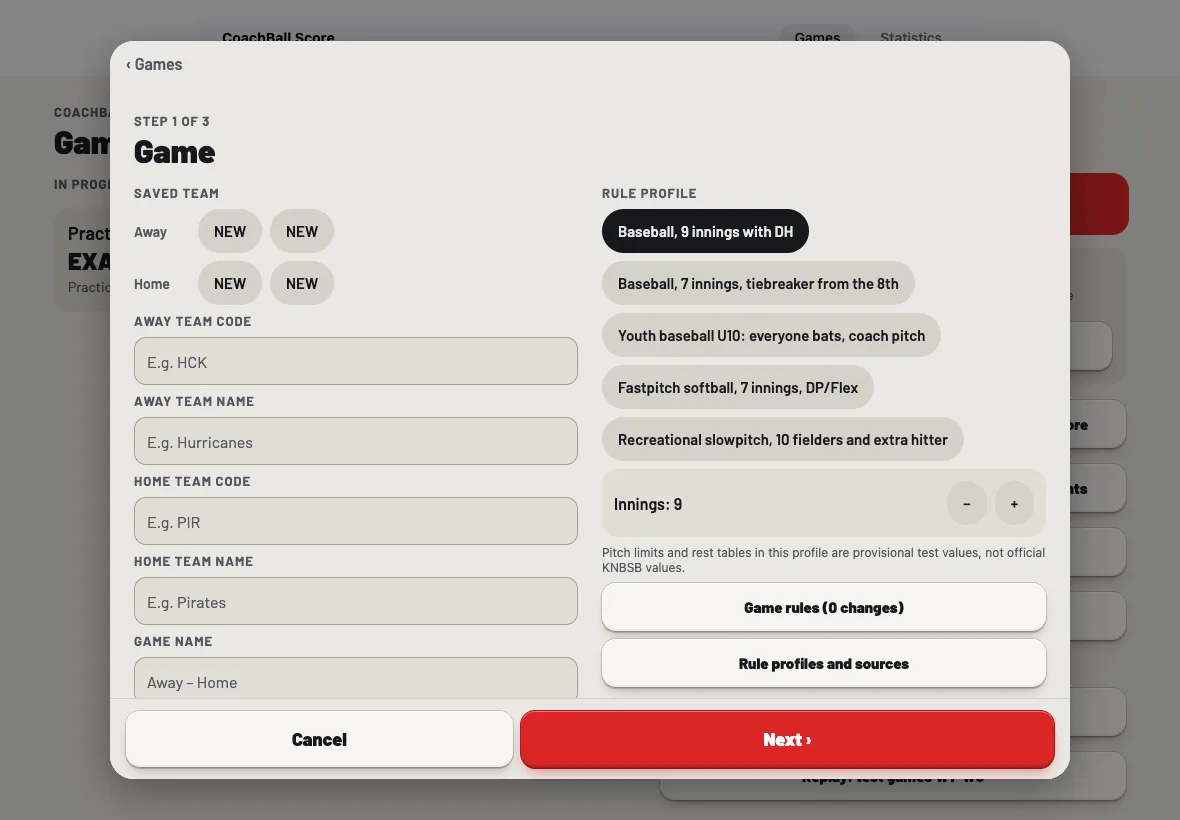
Step 1 of a new game on a tablet.
Enter the lineup
Enter the batting order per team. There are three ways:
- Type the jersey numbers in batting order, with names if you like (for example "12 Jens, 7 Mees").
- Use the quick roster when you only need numbered batters.
- Tap "Scan QR code" and scan the lineup the other scorer shares from the app. The app asks for camera access the first time. The code is only read, nothing is stored or sent.
Score a pitch
Every pitch is one tap: "BALL", "STRIKE called", "STRIKE swinging", "FOUL", "OUT" or "IN PLAY".
- After "IN PLAY" the app asks "Where did the ball go?". Tap the spot on the field, choose the type of hit and the power, then tap "To outcome".
- At "What was the outcome?" tap the result. The most likely result is on top, but the app never picks it for you.
- The app proposes where each runner ends up. Use "Runners" next to a result to change that.
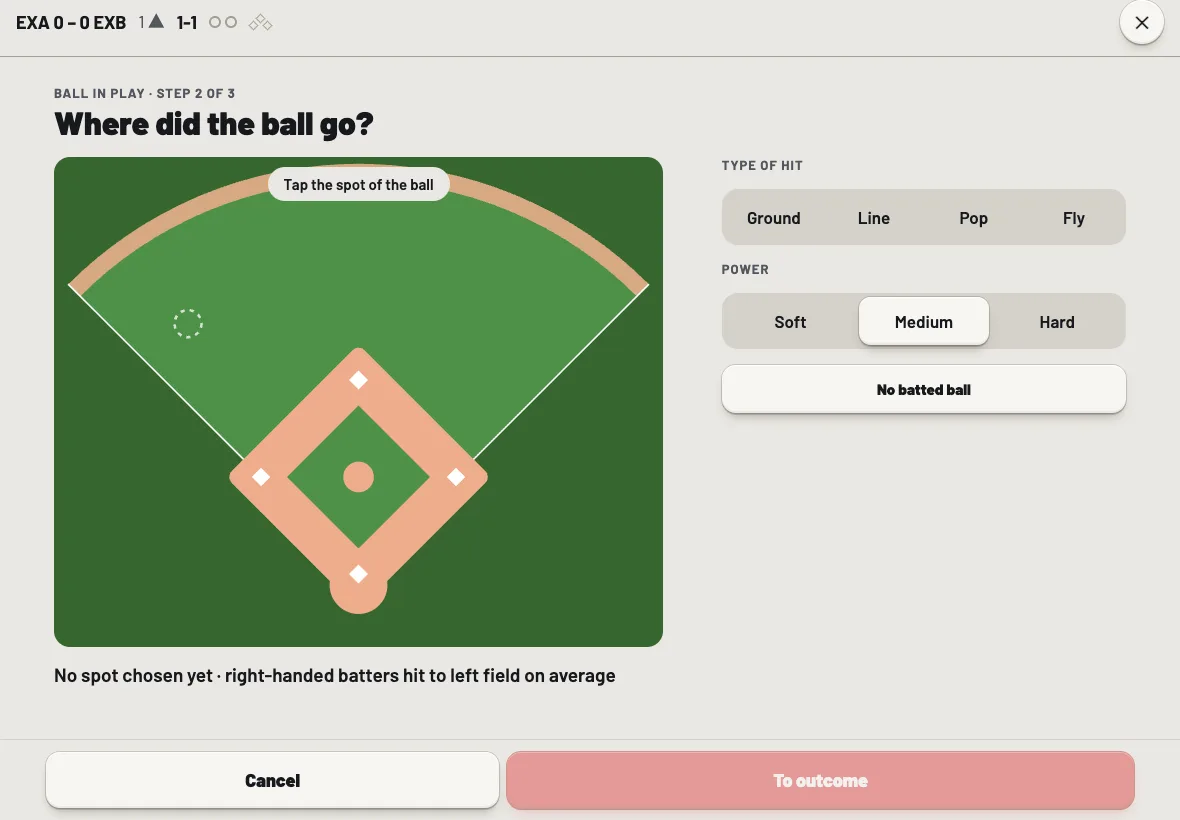
Ball in play, step 2 of 3.
Runners between pitches
A steal, pickoff or wild pitch happens between two pitches. Tap the runner on the field, or use "More" and then the runners.
Undo and correct
- Tap "Undo" in the toolbar to take back the last action. Right after an action a banner with "Undo" shows for a few seconds as well.
- Noticed a mistake later? Open "Log", tap the event and choose "Re-enter".
End the game
After the last out the app ends the game itself and shows a banner with "Final score". To end a game early, for example because of a time limit or darkness, tap "More", then "End of game" and choose the reason. On the final score screen you can share the result or tap "Reopen the game".
Themes and outdoor mode
Tap "Theme" on the scoring screen or go to "Settings". There are nine themes: System, Light, Dark, Glass, Scorebook, Stadium, Clay, Neon and Brutalist. "Outdoor mode" shows white with black for bright sunlight and works with every theme. Your choice applies to the whole app on this device.